How-To / iphone-setup-guide-for-minimal-distraction
A No-BS Guide to Setting Up Your iPhone for Minimal Distraction
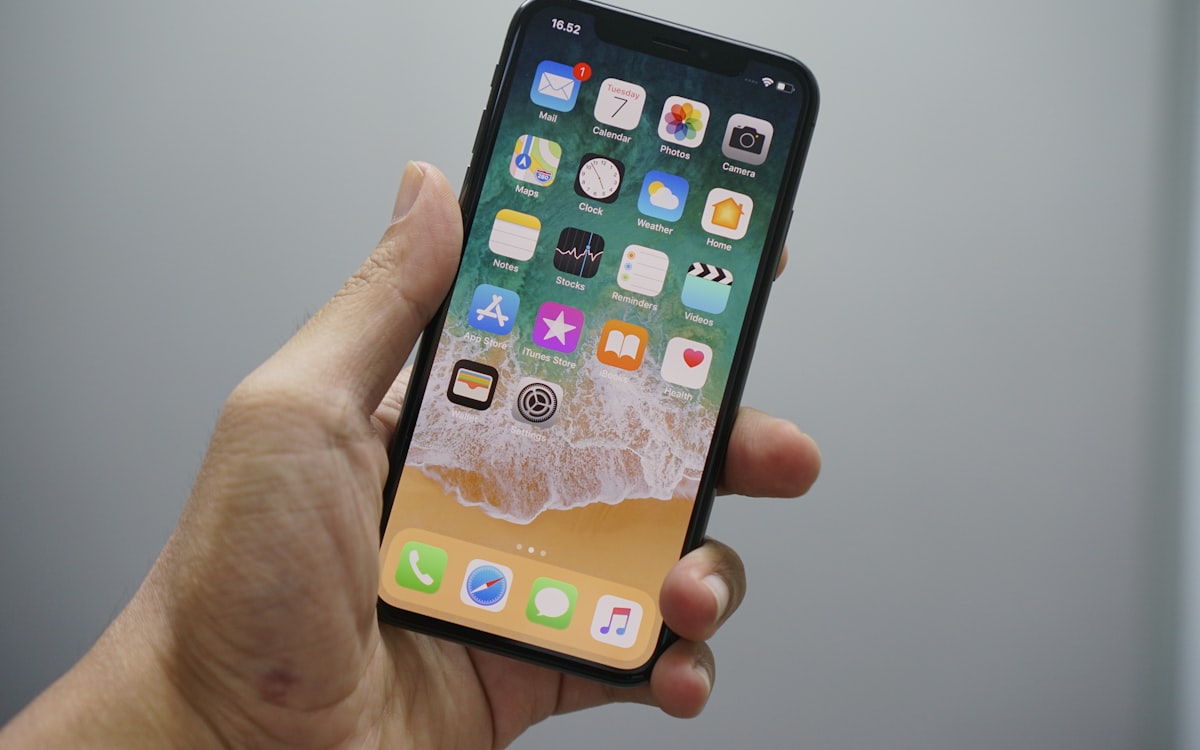
I've read a hundred articles about reducing phone usage, and most say the same thing: be more intentional. Great. Thanks.
What I actually wanted was someone to tell me exactly which settings to change, on which screen, in what order. So that's what this is. No philosophy, just a walkthrough that turns your iPhone into a tool instead of a trap.
Budget about 20 minutes. You do it once.
Key Takeaways
- Step 1, killing notifications, does more than the other seven combined. If you stop after one step, stop after that one.
- Setup order matters: remove interruptions first, then visual triggers, then add limits.
- Screen Time limits are overridable by design. The friction is the feature, not a flaw.
- The last step isn't a setting at all. Moving your charger out of the bedroom is the highest-return change on the list.
- Expect to keep calls, texts, maps, music, and camera. This is not about a phone you can't use.
Before You Start
Two things worth knowing so you don't get frustrated halfway through.
Every limit here is bypassable. That's intentional. The goal isn't a phone you can't unlock, it's a phone where the mindless path takes three extra taps and the deliberate path stays easy. If you want a hard lock, Screen Time passcodes exist, but most people who set them just memorize the code within a week.
Also, do these in order. Notifications first, because there's no point curating a home screen you're being pulled back to every six minutes anyway.
Step 1: Nuke Your Notifications
This is the most impactful change on the list. Most people have 30 to 40 apps sending notifications, and each is a hook.
- Open Settings, then Notifications.
- Go through every app, one by one. Yes, all of them.
- For each, ask whether it genuinely needs to interrupt you. For most people the honest answer is yes for Phone, Messages, and Calendar, and no for everything else.
- For borderline apps, set Deliver Quietly. They'll appear in Notification Center without a sound or lock screen banner, so you see them when you choose to look.
The research supports the middle path rather than the extreme one. A study on notification batching found that receiving notifications in three daily batches left people more attentive, more productive, and in better moods, while switching notifications off entirely produced more anxiety and fear of missing out. Deliver Quietly is the closest iOS equivalent to batching, which is why it beats a blanket blackout.
Scheduled Summary, under Settings, Notifications, Scheduled Summary, gets you even closer. Pick two or three delivery times a day.
Step 2: Clean Up Your Home Screen
Your home screen should hold tools only: Phone, Camera, Maps, Calendar, Weather, Notes. Roughly that.
- Press and hold any app you want gone, then tap Remove App, then Remove from Home Screen. This keeps it installed and searchable but off your screens.
- Do this for every social, news, and video app without exception.
- Reduce yourself to a single home screen page if you can.
Social apps in particular should not be visible. You can still reach them by swiping down and searching, which takes about four seconds. Those four seconds plus the absence of the icon as a visual trigger do most of the work.
Step 3: Turn On Grayscale
- Settings, then Accessibility, then Display & Text Size, then Color Filters.
- Turn on Color Filters and select Grayscale.
- Settings, then Accessibility, then Accessibility Shortcut at the bottom, and select Color Filters.
Now triple-clicking the side button toggles color. Leave gray on by default and flip to color for photos.
Expect roughly half an hour a day back from this, based on a study of 161 undergraduates in The Social Science Journal. Don't expect it to reduce how often you pick the phone up, because the research says it doesn't.
Step 4: Set Up Focus Modes
Settings, then Focus. Build at least two.
Work Focus: allow notifications from key contacts and work apps only, block social entirely, and set it to run on a schedule during your working hours.
Sleep Focus: allow nothing except calls from favorites, dim the lock screen, and schedule it from bedtime to wake time.
Each Focus can also swap your home screen pages, so your Work screen shows only work apps and your Sleep screen is nearly empty. That's the part people skip, and it's the part that makes Focus modes more than a fancy Do Not Disturb.
Step 5: Set App Limits
Settings, then Screen Time, then App Limits.
Set daily limits for whatever you overuse. Mine are 20 minutes for Instagram, 30 for YouTube, 45 for the browser. When you hit the limit the app grays out. You can override it, and you often will, but having to consciously dismiss the warning is usually enough.
A tip that makes this work better: set the limit slightly below your current average rather than at some aspirational number. A limit you blow past on day one gets ignored by day three.
Step 6: Schedule Downtime
Still in Screen Time, tap Downtime.
Set the hours when only apps you've allowed will open. Mine runs 10 PM to 7 AM. Trying to open something non-essential during that window produces a full-screen reminder. Overridable again, and again the friction is the point.
Step 7: Block Social Sites in Safari
If you've removed the apps but keep typing instagram.com into Safari, close that door.
- Settings, then Screen Time, then Content & Privacy Restrictions.
- Turn on Content & Privacy Restrictions, then tap Content Restrictions, then Web Content.
- Choose Limit Adult Websites, then add the sites you want blocked under Never Allow.
Skipping this is the single most common reason the whole setup quietly fails.
Step 8: Move Your Charger
Not a setting, and still the most valuable item here.
Buy a cheap cable for the kitchen or living room and charge your phone there overnight. Get a five-dollar alarm clock for the nightstand. This removes the two windows where most compulsive use happens, the minutes after waking and the hour before sleep, and it does so without relying on any of the software above.
The reasoning is in why you reach for your phone first thing in the morning, and in my case it was the highest-return change in a full 30-day tracking experiment.
That's It
Twenty minutes. Your phone is now meaningfully less interruptive and less compelling. It still does everything you actually need: calls, texts, maps, music, camera. It just stops doing the things it was designed to make you do.
On Android? The equivalent walkthrough is here.
sources for this page
- Batching smartphone notifications can improve well-beingComputers in Human Behavior · 2019
- True colors: Grayscale setting reduces screen time in college studentsThe Social Science Journal · 2020 · n=161 undergraduates