How-To / android-setup-guide-useful-not-addictive
How I Set Up My Android Phone to Be Actually Useful (Not Addictive)
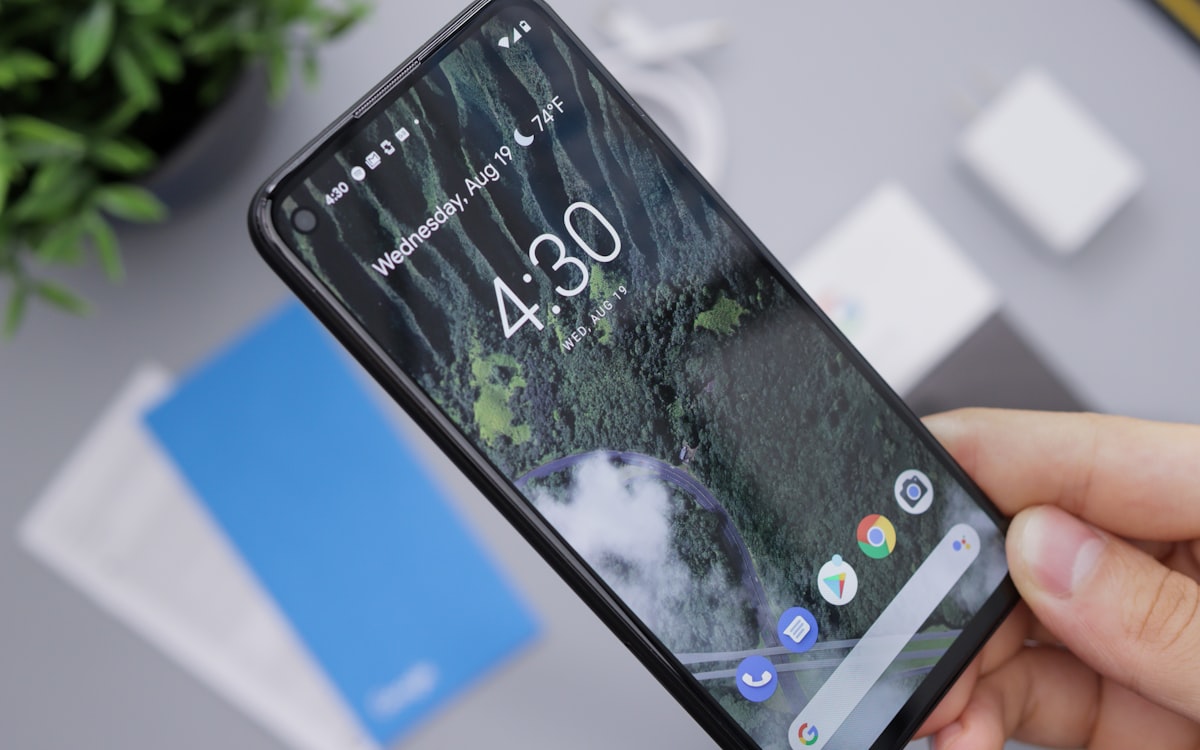
I wrote a guide like this for iPhone a while back and Android users kept asking for their version.
Good news: Android gives you more control over your phone's behavior than iOS does. Bad news: that means more settings to configure.
Key Takeaways
- Notifications first. Step 2 does more than the rest of this list combined.
- Android's biggest advantage over iOS is Bedtime mode, which can schedule grayscale automatically.
- Long-pressing a notification to kill it at the source is the fastest pruning method available on any platform.
- Total setup time is about 30 minutes, and it took my screen time from 4+ hours to roughly 90 minutes.
- Expect a few uncomfortable days. That discomfort is the habit breaking.
Before You Start
Menu paths differ by manufacturer. Samsung, Pixel, OnePlus, and Xiaomi each move things around, so if a path below doesn't match your phone, search the Settings app for the feature name rather than hunting through menus.
Do these in order. There's no point curating a home screen while something is still buzzing at you every six minutes.
Step 1: The Home Screen
I use a single home screen with exactly six apps: Phone, Messages, Camera, Maps, Calendar, and a notes app.
No social media, no email, no browser. Everything else lives in the app drawer behind a deliberate swipe.
To go further, install a minimalist launcher. I use Minimalist Phone, which replaces the home screen with a plain text list. It's ugly in the best way. Nothing to tap, nothing to catch your eye.
Step 2: Notifications
The single most impactful change on this list.
- Open Settings, then Notifications, then App notifications.
- Turn everything off.
- Add back only Phone, Messages from starred contacts, and Calendar.
Android has a faster method that iOS lacks: when a notification arrives, long-press it and choose Turn off notifications. Do that ruthlessly for a week and you'll catch every app bothering you, including the ones you'd never have thought to look for.
One refinement worth knowing. Research on notification batching found that grouping notifications into three daily deliveries left people more attentive and more in control, while switching them off entirely actually increased anxiety and fear of missing out. If total silence makes you uneasy, that's expected. Use a scheduled check-in rhythm instead of pure blackout.
Step 3: Digital Wellbeing
Android's built-in version is genuinely good.
Settings, then Digital Wellbeing and parental controls.
- App timers: set a daily limit on anything you overuse. When it expires the app is paused for the day. I use 15 minutes for any social app still installed.
- Focus mode: pick the apps to pause, and schedule it for your working hours.
- Bedtime mode: this one is the reason Android wins. It can trigger grayscale and Do Not Disturb together on a schedule, with no third-party app required.
Set app limits slightly below your current average rather than at an aspirational number. A limit you blow through on day one gets ignored by day three.
Step 4: Grayscale
Worth its own step because of how well it works.
Settings, then Accessibility, then Color correction, and select Grayscale or Monochromacy. On Pixel you can add a Greyscale tile to Quick Settings. On Samsung, a Bixby Routine can enable it during set hours or when specific apps open.
Expect roughly half an hour a day back, based on a study of 161 undergraduates in The Social Science Journal. Don't expect fewer pickups, because the research shows unlock counts stay flat.
Step 5: Bury the Browser
I moved Chrome to a folder on the third page of the app drawer.
When I need to look something up I still can. It just costs five seconds of deliberate navigation, and that friction removes most idle browsing. Deleting social apps while leaving the browser one tap away is the most common way these setups quietly fail.
Step 6: Email on a Schedule
Remove email widgets and turn off all email notifications. Open the app deliberately, three times a day.
If work makes that impossible, at minimum kill sound and vibration so you're checking on your schedule rather than the sender's.
Step 7: Use Do Not Disturb Aggressively
Android's DND is unusually configurable.
Mine allows calls from starred contacts only, suppresses everything else, and runs automatically from 9 PM to 7 AM. During focused work I enable it manually with exceptions for my wife and kids.
Step 8: Move Your Charger
Not a setting, and still the highest-return item here.
Charge the phone outside the bedroom and use a cheap alarm clock. This removes the two windows where most compulsive use happens, and it works regardless of whether any of the software above is configured correctly. The reasoning is in why you reach for your phone first thing.
Step 9: Audit Monthly
Set a recurring calendar reminder for the first of the month to review your Digital Wellbeing stats.
Which apps are consuming the time? Where did it actually go? Adjust from data rather than from memory, because memory on this subject is reliably wrong.
What to Expect
About 30 minutes of setup. My screen time went from over four hours to roughly 90 minutes, most of it navigation, calls, and calendar.
The first few days feel strange. You'll reach for your phone and find nothing to do on it. That's the point. Sit with it. It passes.
On iPhone instead? The iOS walkthrough is here.
sources for this page
- Batching smartphone notifications can improve well-beingComputers in Human Behavior · 2019
- True colors: Grayscale setting reduces screen time in college studentsThe Social Science Journal · 2020 · n=161 undergraduates